How to Turn a Video Into a GIF and Make Your Content More Engaging
 By jotechgeeks
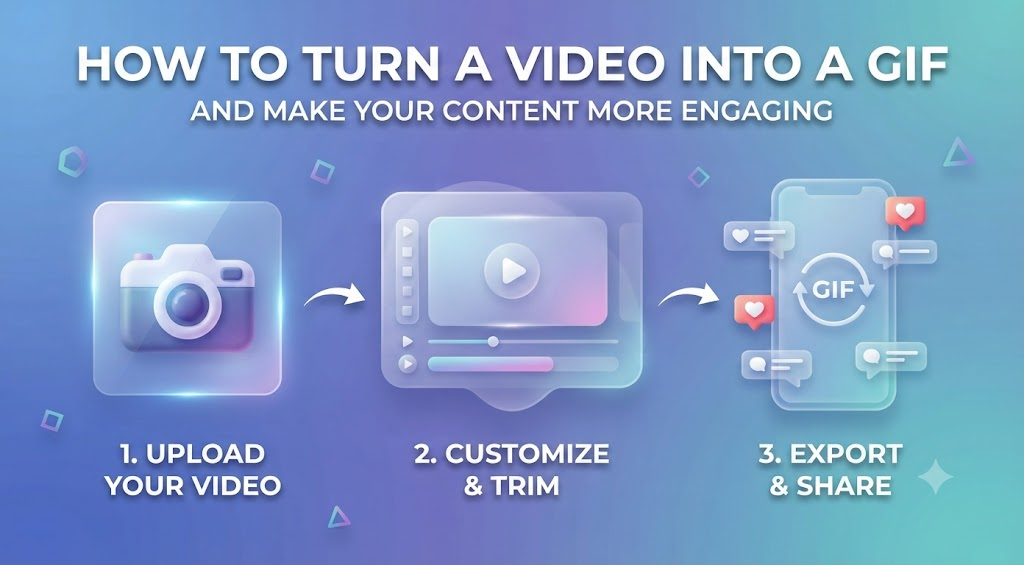
Sometimes you record a video for something that only takes a few seconds to explain. Maybe you want to show someone where to find a setting, demonstrate how an app works, or capture a funny moment. Sending the entire video can feel like too much, especially when only one small part of it is actually useful.
That is one reason GIFs are still so handy. With a video to GIF converter, you can take a short section of a video and turn it into a looping animation that is easy to share. You do not need sound, a video player, or a long explanation. The animation simply plays and shows the point.
Why Would You Use a GIF Instead of a Video?
GIFs are not new. Most of us have probably seen hundreds of them online, from funny reactions to short clips from movies and TV shows. But they are also useful outside of memes and online jokes.
Think about reading a technology tutorial. You are trying to follow instructions for changing a setting, but the explanation says, “Click here, then open this menu.” You still have to figure out exactly where “here” is.
A short GIF can show you.
That is what makes the format useful. Instead of explaining every little movement, you can show the action as it happens.
For websites like tech blogs, product guides, and software tutorials, this can make an article much easier to follow.
When Does a GIF Make Sense?
You probably do not want to turn every video you have into a GIF. It works best for short moments that are easy to understand without audio.
Here are a few examples.
Showing how software works
This is probably one of the most practical uses.
Let’s say you are writing about a new feature in a photo editing program. You could add five screenshots showing each step, or you could show the whole process in a short animation.
The reader can see exactly what happens without stopping to compare several images.
This is also useful for showing things like:
- How to find a setting
- How to upload a file
- How to use a new feature
- How to complete a simple task
- How a website function works
For technical content, sometimes seeing the action is much easier than reading about it.
Highlighting a Product Feature
GIFs can also work well when you want to show what a product actually does.
For example, imagine you are reviewing a new productivity app. Instead of simply writing that the interface is easy to use, you could show a few seconds of someone creating a task, moving it to another category, or changing its settings.
That small animation gives the reader a better idea of the experience.
It can also be useful for software companies that want to explain a feature without making a full promotional video.
Creating Social Media Content
Social media moves quickly. People scroll through posts and decide within seconds whether something is worth their attention.
A short animation can help you catch that attention.
You might have a longer product video, for example, but there is one five-second moment that is particularly interesting. Instead of posting the entire video, you can use that small section as a quick visual for your social post.
It is simple, but it can make the content feel more active than a regular image.
Pick One Moment, Not the Whole Video
One of the easiest ways to make a better GIF is to keep it short.
If you have a two-minute video, do not automatically try to turn the whole thing into an animation. Most of the time, that will only make the file unnecessarily large and difficult to watch.
Watch the video and find the part that actually matters.
Maybe it is the moment when a button is clicked. Maybe it is a product demonstration. Maybe it is a funny reaction that lasts three seconds.
Once you find that moment, remove everything else.
A good GIF usually has one simple purpose. The viewer should understand what they are looking at almost immediately.
Keep an Eye on File Size
There is another thing worth remembering: GIFs can get big.
A short animation with large dimensions and lots of frames can use much more space than you might expect. That matters if you are adding GIFs to a website.
Large files can take longer to load, especially for people using mobile data or slower connections. If your GIF is only showing a small part of a website, there is usually no reason for it to be enormous.
Before publishing it, think about where it will appear.
If it is going inside a blog post, a smaller size may be perfectly fine. If it needs to demonstrate something in detail, you may want to keep more resolution.
The trick is finding the balance between quality and file size.
GIFs Can Make Tutorials Easier to Understand
One of my favorite uses for GIFs is in tutorials.
Imagine you are explaining how to change a setting in a browser. You could write:
- Open Settings.
- Select Privacy.
- Find the relevant option.
- Turn it on.
That works, but it still makes the reader look around for the right buttons.
Now imagine placing a short animation underneath those instructions. The reader can see where you click and what happens next.
The written instructions are still useful, but the GIF removes some of the guesswork.
This combination of text and visuals is especially helpful for technical content because different people understand instructions in different ways.
Do Not Forget About Accessibility
Animations should support your content, not replace it completely.
If an important instruction is shown only in a GIF, someone who cannot view the animation properly may miss the information. It is better to explain the important part in the surrounding text as well.
For example, instead of relying entirely on an animation, you can write a short explanation of what the reader should click and then use the GIF as a visual example.
Also, avoid unnecessary flashing or very fast animations. A simple, steady loop is usually easier to watch and less distracting.
A Simple Way to Create Better GIFs
You do not need a complicated editing process.
Start with a video that already contains the moment you want to use. Find the exact section, trim away anything unnecessary, and check how the animation looks when it repeats.
Before you publish it, ask yourself a few questions:
Is it too long?
If you can remove a second or two without losing the point, do it.
Is the important action easy to see?
If the viewer has to search the screen for what is happening, consider cropping or adjusting the clip.
Does the loop feel natural?
A GIF that suddenly jumps from the end back to the beginning can look awkward.
Is the file unnecessarily large?
If the animation looks just as good at a smaller size, there is no reason to keep the larger version.
These small details can make a surprisingly big difference.
GIFs Are More Than Internet Memes
It is easy to think of GIFs as something used mainly for funny reactions and memes. But they can be genuinely useful in everyday digital work.
Developers can use them to demonstrate an interface. Designers can show a small interaction. Support teams can explain a solution to a common problem. Bloggers can make tutorials easier to understand. Marketers can highlight a product feature.
Even a simple “click here, then do this” animation can save someone from reading a long explanation.
The important thing is to use the format when movement adds something useful. If a static image explains the idea perfectly, use an image. If the action itself is important, an animation may be the better choice.
Final Thoughts
The best GIFs are usually the simplest ones. They do not try to tell an entire story. They focus on one useful moment and make it easy to understand.
So, the next time you have a video with one particularly useful section, do not assume you need to share the whole thing. A short looping animation might be all you need.
For tech tutorials, product guides, social posts, and everyday communication, that small change can make your content easier to understand and much more engaging.